How to reduce photo file size without wrecking quality
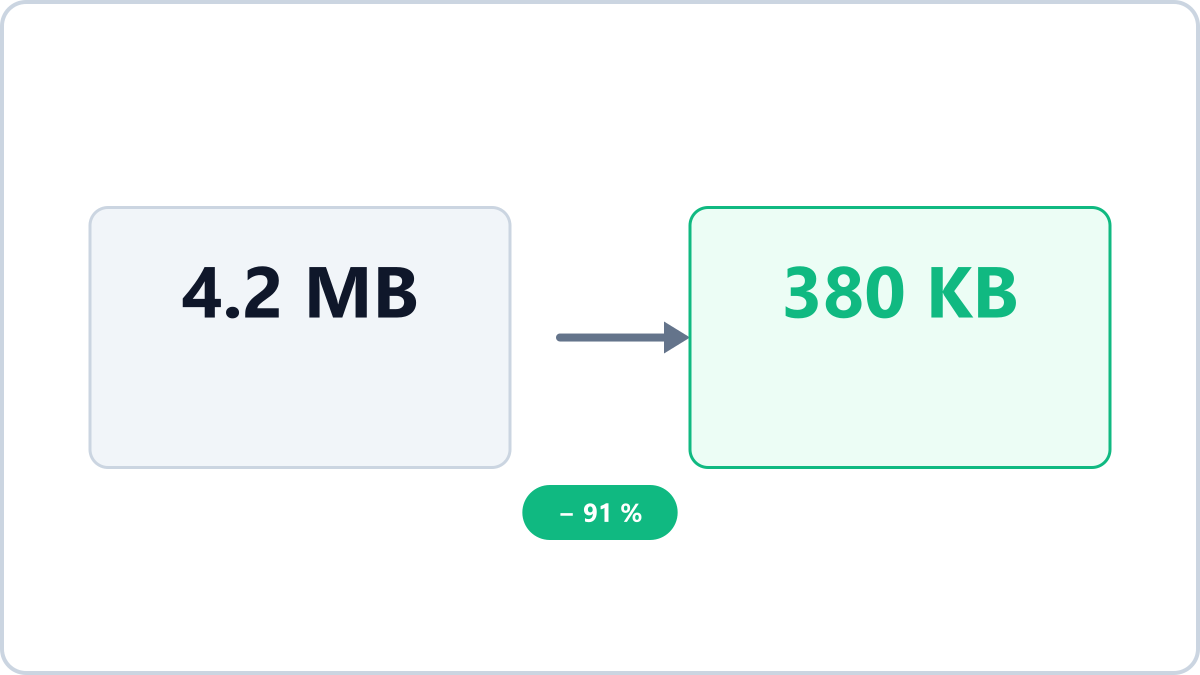
Three things determine a photo's size
A photo file's size comes down to three things: resolution (pixel count), file format and compression quality. Adjust them in that order and you can cut the size dramatically while keeping quality loss to a minimum.
Step 1 — Reduce the resolution (biggest effect)
Photos from a modern phone are over 4000 pixels wide, but for viewing on a screen or posting on the web, around 2000 pixels on the long edge is plenty. Halve the resolution and the file size drops to roughly a quarter.
Keep the format and simply reduce file size by adjusting quality. Handy for email attachments and upload limits.
Compress an imageNo install, no signup · runs in your browser, so files are never sent to a server
Step 2 — Change the format
Switching from JPG to WebP alone often saves 30-50% at the same visual quality. If the absolute smallest file is the goal, AVIF goes further still.
Step 3 — Lower the quality
Dropping the quality value from 85 to 70 is hard to notice on most photos, but the size difference is obvious. Image Converter NOW lets you compare the original and the result side by side after converting, so you can judge the right quality with your own eyes.
In short
- Email attachment (10-25MB limits) → 2000px resolution + 'Smaller file' quality
- Web or blog upload → convert to WebP + resize to the display size you need
- Archiving with quality first → change only the format to WebP/AVIF, keep 'Best quality'
Keep the format and simply reduce file size by adjusting quality. Handy for email attachments and upload limits.
Compress an imageNo install, no signup · runs in your browser, so files are never sent to a server