Resizing photos without losing quality
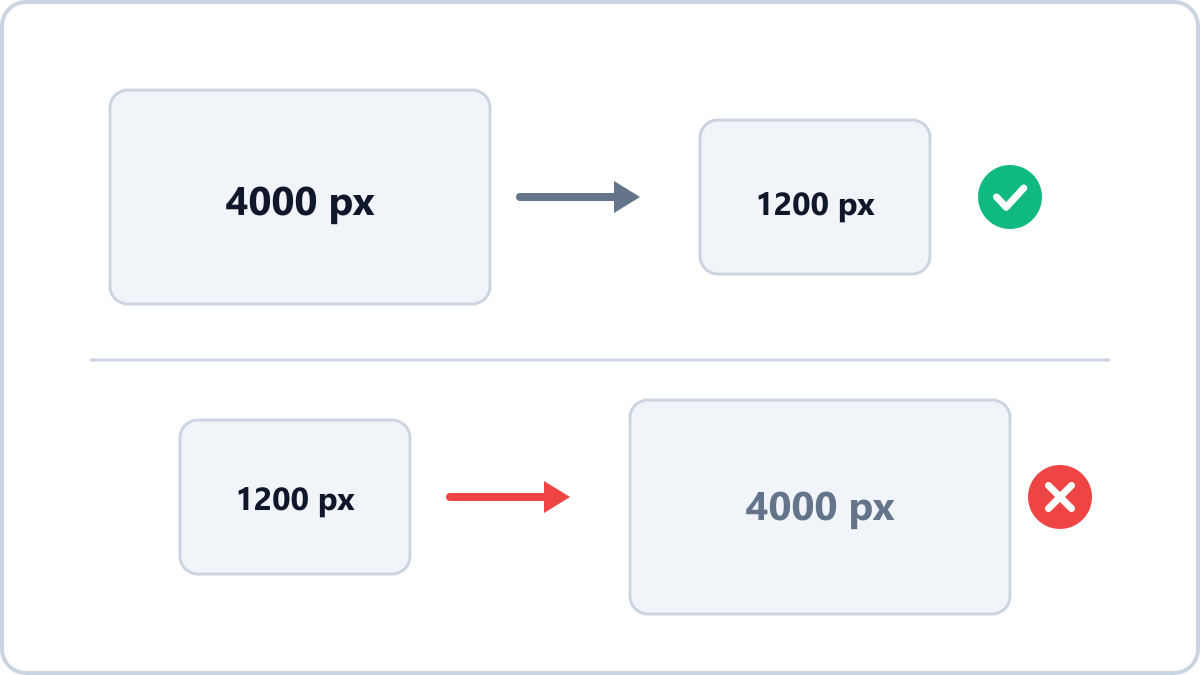
Shrinking is safe; enlarging costs you
Shrinking an image merges the information from several pixels into one, so quality holds up. Enlarging invents pixels that were never there, which inevitably looks softer.
That makes the rule simple: start from a large original, scale down to the size you need, and avoid enlarging where you can.
Keeping quality when you shrink
- Keep the aspect ratio — changing width and height independently distorts the image. Leave the ratio locked
- Go to the target size in one step — resizing repeatedly accumulates loss
- Pick the format at the same time — saving as WebP after shrinking saves a lot more weight
Resize images by entering a width or height, scaling by percentage, or picking a social media preset. The format can stay exactly as it was.
Resize an imageNo install, no signup · runs in your browser, so files are never sent to a server
If you really must enlarge
When enlarging is unavoidable — for print, say — keep it within about 1.5x. Image Converter NOW shows a quality warning in advance whenever a setting would make the image larger than the original, so you do not enlarge by accident.
Use presets for common sizes
Social media sizes (1080x1080, 1200x630 and so on) are available as presets, so there are no numbers to memorise. In manual mode, entering just the width calculates the height automatically from the aspect ratio.
Resize images by entering a width or height, scaling by percentage, or picking a social media preset. The format can stay exactly as it was.
Resize an imageNo install, no signup · runs in your browser, so files are never sent to a server