Convert your WordPress images to WebP and the site gets faster
The usual reason WordPress is slow
If PageSpeed Insights has shown you the 'Serve images in next-gen formats' warning, your JPG and PNG files are the cause. Heavy images delay LCP (Largest Contentful Paint), which hurts both your user experience score and your search ranking.
Option 1 — Convert to WebP before uploading (recommended)
The most reliable approach, and the one that puts no load on your server, is to convert to WebP in the first place. Convert a post's images in bulk with Image Converter NOW, upload them, and the optimization is done — no plugin required.
WordPress has supported WebP uploads natively since version 5.8, so no special configuration is needed.
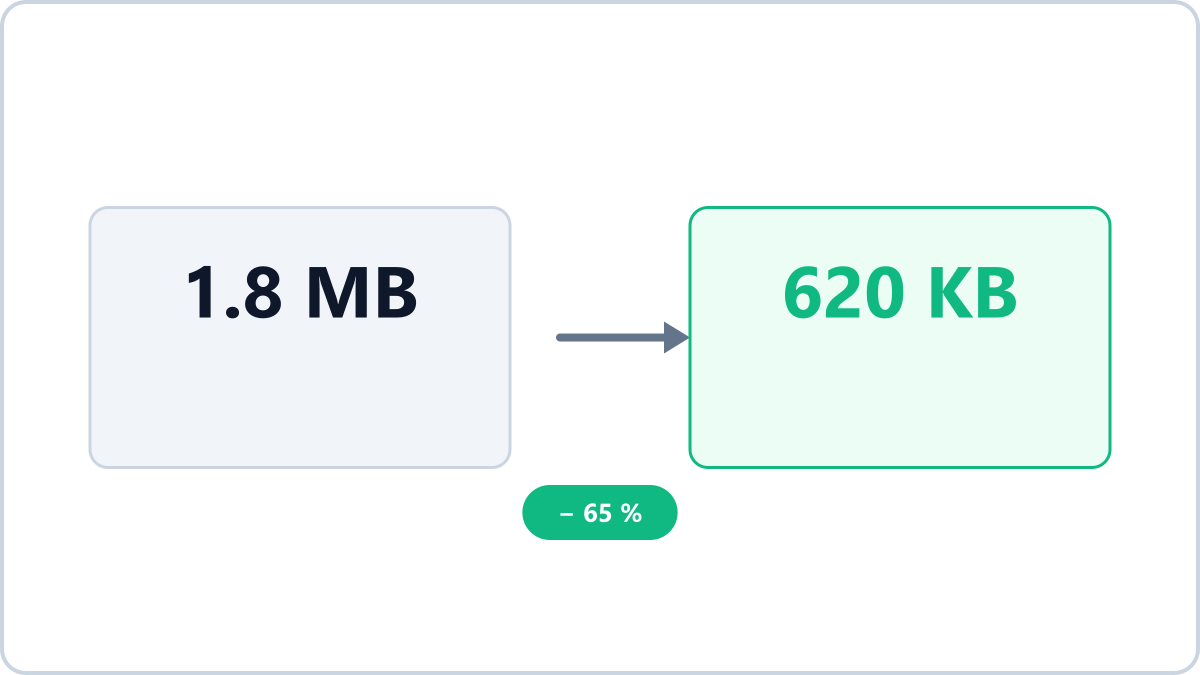
Convert JPG photos to WebP to make pages load faster. File size drops sharply while the picture stays sharp.
Convert JPG to WebPNo install, no signup · runs in your browser, so files are never sent to a server
Option 2 — Use a conversion plugin
If you already have a large library of uploaded images, an optimization plugin can convert them in bulk on the server. Weigh up the quota on the free tier, the load on your server and the risk of plugin conflicts. In practice, the sensible combination is option 1 for new images and a plugin for the back catalogue.
Worth doing at the same time
- Image dimensions — twice the column width is plenty (usually 1600px or less)
- File size target — 100-200KB per in-article image
- Featured image — make it 1200x630 and your social sharing preview is handled too
Convert JPG photos to WebP to make pages load faster. File size drops sharply while the picture stays sharp.
Convert JPG to WebPNo install, no signup · runs in your browser, so files are never sent to a server