How to open iPhone HEIC photos on Windows
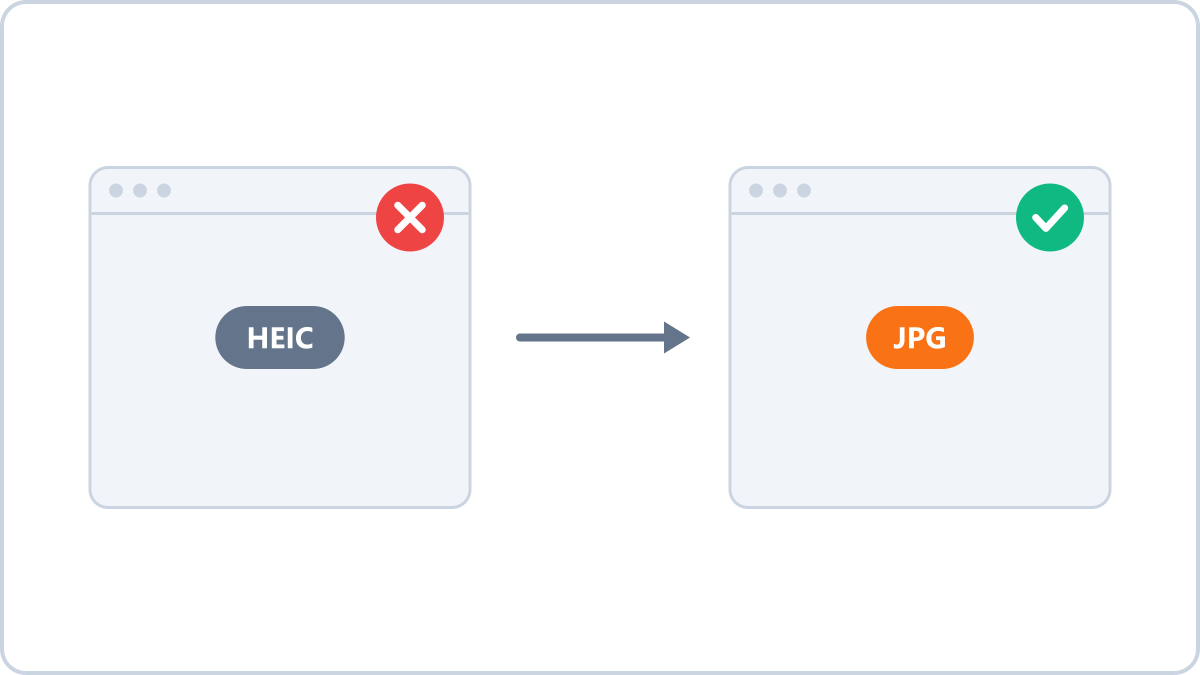
What is HEIC?
HEIC is the format iPhones save photos in by default. A HEIC file is roughly half the size of a JPG at the same quality, which is great for your iPhone's storage but poor for compatibility outside Apple's ecosystem.
Copy those photos to a Windows PC and you typically get no thumbnail preview, or a prompt to install the paid 'HEVC Video Extensions' before the file will open.
Fix 1 — Convert to JPG (for photos you already copied)
For HEIC photos already sitting on your PC, converting to JPG is the simplest answer. The Image Converter NOW HEIC to JPG converter does the work inside your browser, so there is nothing to install and no photo to upload.
Orientation (portrait/landscape) is corrected automatically during conversion, and privacy metadata such as GPS location is stripped. Add up to 5 photos at once and download them together as a ZIP.
Convert HEIC photos taken on an iPhone into JPG files that open on Windows, Android and everywhere else. Photo orientation is fixed automatically.
Convert HEIC to JPGNo install, no signup · runs in your browser, so files are never sent to a server
Fix 2 — Change your iPhone setting (for photos you take from now on)
To save new photos as JPG, go to Settings → Camera → Formats on your iPhone and choose 'Most Compatible'. Everything you shoot afterwards is saved as JPG — though the files will be larger than HEIC.
Note — how you transfer them matters
Sending photos through messaging apps or email often converts them to JPG automatically. Transferring over a USB cable or syncing through the cloud, on the other hand, brings the original HEIC across untouched. If you need the original quality, transfer the original and convert afterwards.
Convert HEIC photos taken on an iPhone into JPG files that open on Windows, Android and everywhere else. Photo orientation is fixed automatically.
Convert HEIC to JPGNo install, no signup · runs in your browser, so files are never sent to a server